3D printing size and fit tests
Try several widths, depths or clearances from one design. Vary the relevant parameters while keeping other dimensions unchanged; inspect and slice each STL before printing.
PARAMETRIC CAD / BATCH VARIANTS
Generate multiple sizes of a parametric SolidCraft model from a dimension table or CSV. Download STL for 3D printing, STEP for CAD exchange, and editable native files together.
Start with a parametric .solidcraft model or native JSON design. Existing STL and STEP files are not supported as source models.
Choose a model → Set your sizes → Generate & download
Use a native model with editable parameters. STL and STEP files do not carry the original modeling dimensions.
Your size table will appear after reading a model.
PARAMETRIC CAD / BATCH VARIANTS
When a part needs several sizes, changing dimensions and exporting each version by hand becomes repetitive. Batch Variants rebuilds a native SolidCraft CAD model for every row of a dimension table. Change selected dimensions independently, keep the rest of the design, and download the successful variants together. This is useful for a family of parts or a 3D printing fit test: the geometry follows your model’s parameters instead of uniformly scaling an existing mesh.
Upload a .solidcraft file or native JSON design, or try the example block. Read the model parameters to open the separate preview window. Keep popups enabled; your source model stays on your device.
Select the numeric parameters you want to vary. Give each row a unique variant name and enter its dimensions, or import a CSV dimension table. Use the parameter’s existing unit or an explicit value such as 50 mm or 2 in.
Choose STL, STEP, editable native files, or all three. Each row is rebuilt separately. Download the successful files with a CSV result report and manifest, then inspect the geometry before slicing or using it in another CAD workflow.
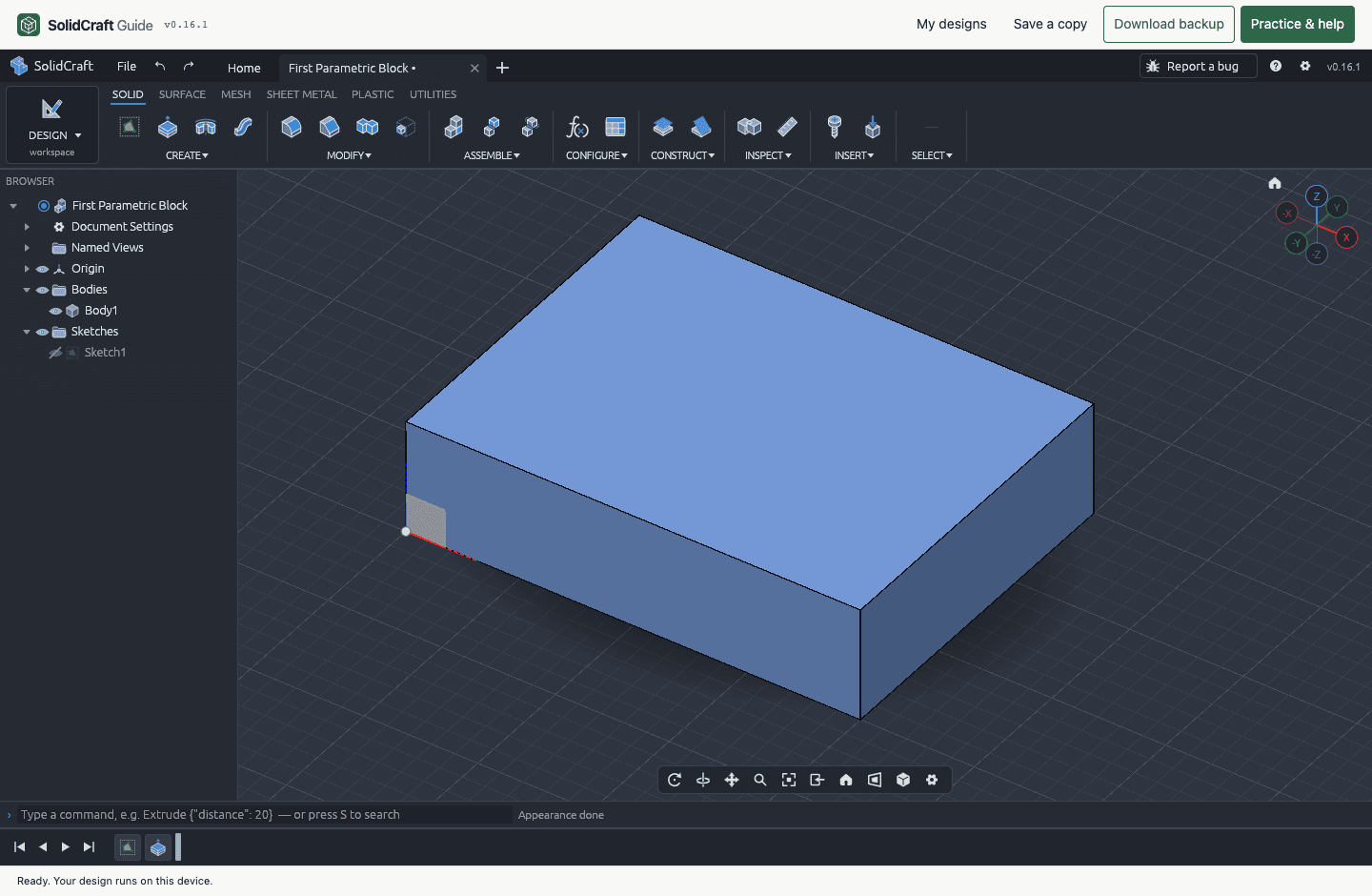
Use this downloadable model and CSV to try the complete workflow. The source is a 40 × 30 × 10 mm block: d1 controls width, d2 controls depth, and d3 controls extrusion height. These parameter names belong to this example; your own model may expose different names.
| Variant | Width · d1 | Depth · d2 | Height · d3 |
|---|---|---|---|
| small | 60 mm | 35 mm | 5 mm |
| medium | 70 mm | 40 mm | 6 mm |
| large | 80 mm | 45 mm | 8 mm |
With all three formats selected and all rows successful, this example produces 9 model files in one ZIP, plus batch-report.csv and manifest.json. The three variants fit within the free batch limit.
The first column is variant; the remaining headers must match existing parameter names exactly. Each row describes one complete size, not a combination to multiply automatically. CSV values change dimensions in the source model; they do not create a model from scratch. Prepare the table in a spreadsheet and save it as CSV.
variant,d1,d2,d3
small,60 mm,35 mm,5 mm
medium,70 mm,40 mm,6 mm
large,80 mm,45 mm,8 mm| Format | Best used for | What you keep |
|---|---|---|
| STL | Importing size variants into a 3D printing slicer. | A triangle mesh of each generated variant. It does not retain the source model’s editable dimensions or feature history. |
| STEP | Exchanging solid geometry with another CAD application. | The generated solid geometry. It does not transfer the native SolidCraft parameter table or feature history. |
| .solidcraft | Reopening a variant in SolidCraft to continue editing. | An editable native design with that variant’s parameter values. |
This tool generates new files from a native parametric model. It does not convert uploaded STL files to STEP, recover dimensions from a mesh, or export G-code. Check units, fit and print settings in your downstream software.
Try several widths, depths or clearances from one design. Vary the relevant parameters while keeping other dimensions unchanged; inspect and slice each STL before printing.
Prepare several sizes of a spacer, bracket or mounting plate from your own parameterized model. Named rows keep each exported version associated with its intended dimensions.
Maintain a repeatable list of dimensions in a CSV design table. Import the rows for the next run instead of repeating the same edits and individual exports.
Start with a native .solidcraft model or a native design saved as JSON. It needs existing numeric parameters and a valid solid. Simple parameterized parts are the best starting point.
The model moves directly between your tabs and is processed in your browser. Paid tasks send only a model fingerprint, row count and result counts to manage credits. The server does not receive the model or your dimension table.
Each row is rebuilt and checked separately. Failed rows appear in the report, while successful variants remain in the ZIP. Review the files before printing or manufacturing.
One batch credit covers up to 20 variants and your chosen export formats. A ZIP includes a CSV result report and file manifest. Standard modeling, local saving and single-file export remain free.
Open one native parametric model, select the dimensions to vary, and add one row per size or import a CSV. Select STL and generate the batch. Each successful row produces its own STL in the ZIP; select STEP and native files too if you need those formats.
No. Batch Variants currently reads native .solidcraft files and native JSON designs with existing numeric parameters. STL and STEP are export formats here. It does not import Fusion, SolidWorks or OpenSCAD source files, and it does not reconstruct an editable feature history from a mesh or STEP solid.
You can generate up to 3 variants per batch without an account, including STL, STEP and native exports. A larger batch needs a signed-in account and one batch credit for up to 20 variants. The purchase panel shows whether paid packs are currently available.
Uniform STL scaling changes every dimension by the same factor, including holes and wall thicknesses. Parametric variants change only the exposed parameters you select and rebuild the source design. For example, you can vary a part’s width while keeping its height unchanged, provided the model is constrained that way.